
Android phones are packed with powerful features that most users never discover. While the basics like calling, texting, and installing apps are easy to use, Android hides a lot of smart tools that can make your phone faster, safer, and more convenient.
The best part? Most of these features are already built into your device — you just need to turn them on.
In this guide, we’ll walk you through 15 hidden Android features you should enable in 2026 to get the most out of your smartphone.
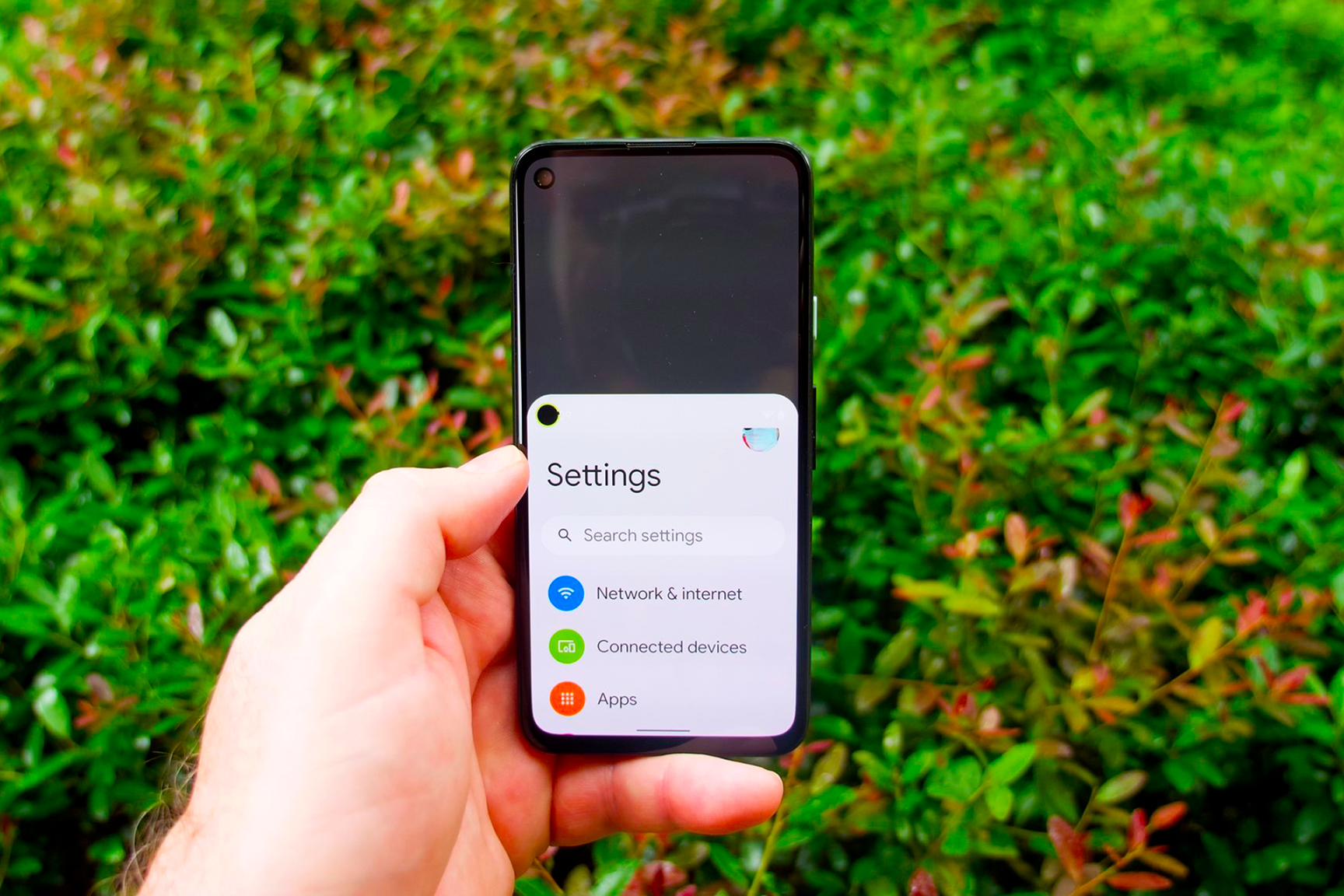
- Feature 1:
- Enable One-Handed Mode
- → Open Settings
- → Tap System
- → Select Gestures
- → Tap One-Handed Mode
- → Toggle it ON
- Now you can swipe down on the bottom edge of your screen to bring the display closer to your thumb.
- Why it’s useful: Makes big phones easier to control with one hand.
- Feature 2:
- Turn On Live Caption
- → Open Settings
- → Tap Accessibility
- → Select Live Caption
- → Toggle Use Live Caption
- Live Caption automatically generates subtitles for videos, podcasts, and voice messages.
- Why it’s useful: Perfect for watching videos in silent environments.
- Feature 3:
- Enable App Archiving
- → Open Google Play Store
- → Tap your Profile Icon
- → Go to Settings
- → Select General
- → Enable Automatically Archive Apps
- App Archiving frees storage space without deleting your app data.
- Why it’s useful: Great for phones running low on storage.
- Feature 4:
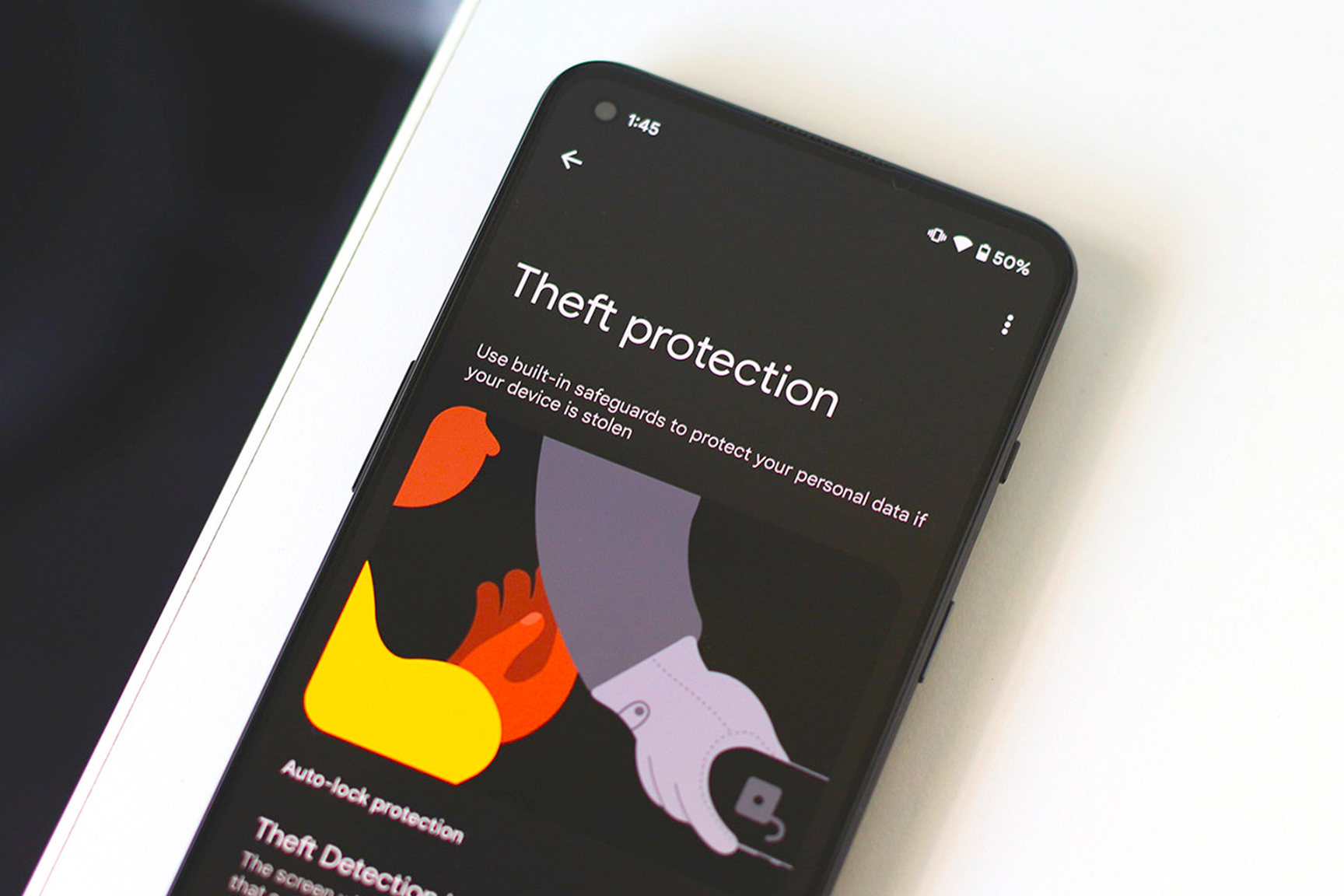
- Turn On Theft Protection
- → Open Settings
- → Tap Security & Privacy
- → Select Find My Device
- → Turn on Theft Protection
- New Android security tools can help protect your device if it gets stolen.
- Why it’s useful: Your phone can automatically lock itself if suspicious activity is detected.
- Feature 5:
- Enable Smart Lock
- → Open Settings
- → Tap Security
- → Select Smart Lock
- → Add Trusted Locations or Trusted Devices
- Smart Lock keeps your phone unlocked when you’re in trusted places.
- Why it’s useful: Your phone stays unlocked at home or when connected to your smartwatch.
- Feature 6:
- Turn On Adaptive Battery
- → Open Settings
- → Tap Battery
- → Select Adaptive Battery
- → Toggle it ON
- Adaptive Battery helps extend battery life by limiting background apps.
- Why it’s useful: Improves battery life automatically.
- Feature 7:
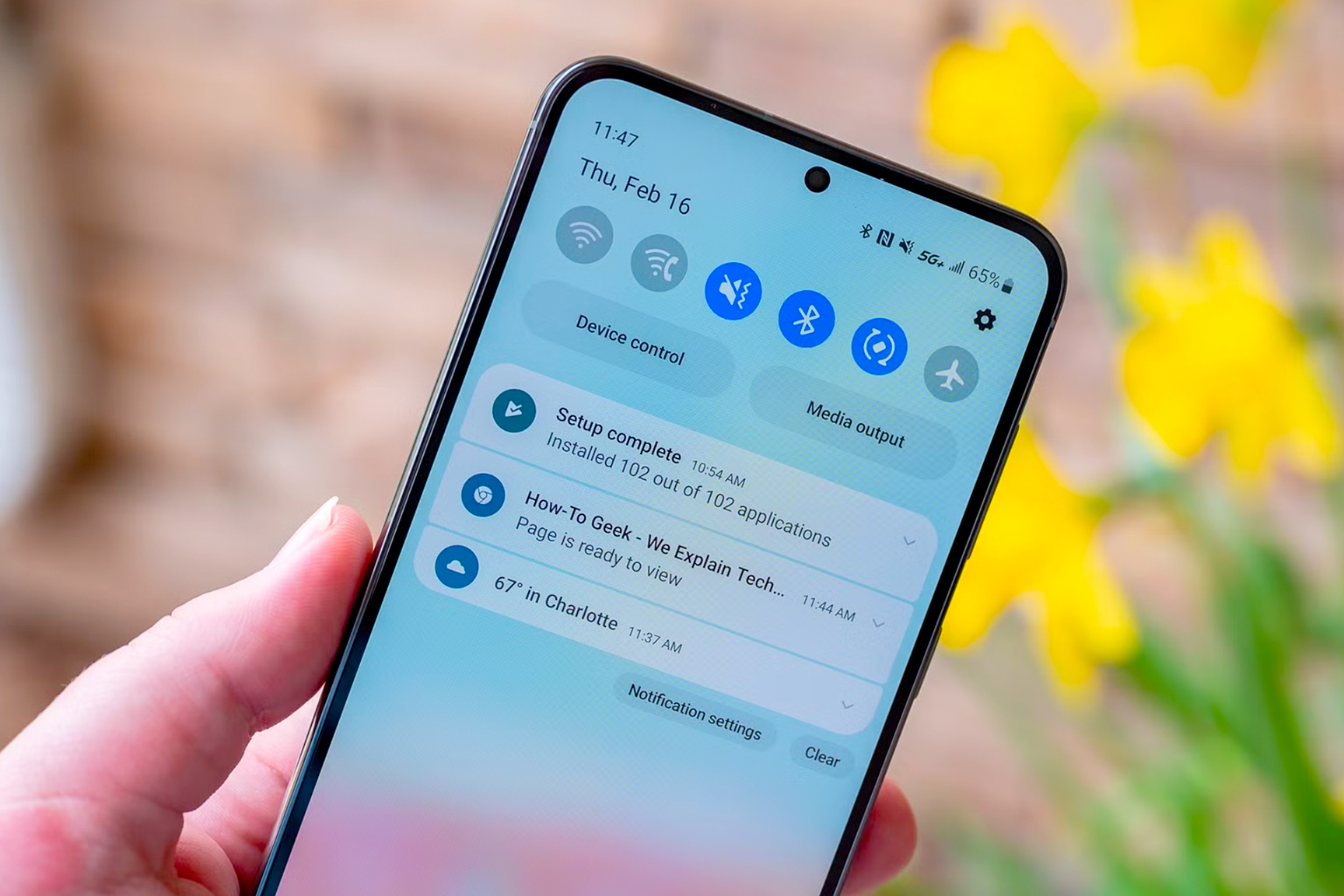
- Enable Notification History
- → Open Settings
- → Tap Notifications
- → Select Notification History
- → Toggle it ON
- Ever dismissed an important notification by accident? Android can save them.
- Why it’s useful: You can review missed alerts anytime.
- Feature 8:
- Turn On Screen Attention
- → Open Settings
- → Tap Display
- → Select Screen Attention
- → Toggle ON
- Screen Attention keeps the screen from turning off while you're looking at it.
- Why it’s useful: Perfect for reading articles or recipes without touching the phone.
- Feature 9:
- Enable Dark Mode Scheduling
- → Open Settings
- → Tap Display
- → Select Dark Theme
- → Enable Schedule
- Dark Mode can automatically activate at night.
- Why it’s useful: Reduces eye strain and saves battery on OLED screens.
- Feature 10:
- Turn On Private DNS
- → Open Settings
- → Tap Display
- → Select Dark Theme
- → Enable Schedule
- Private DNS helps protect your internet traffic and improves privacy.
- Why it’s useful: Adds an extra layer of security while browsing.
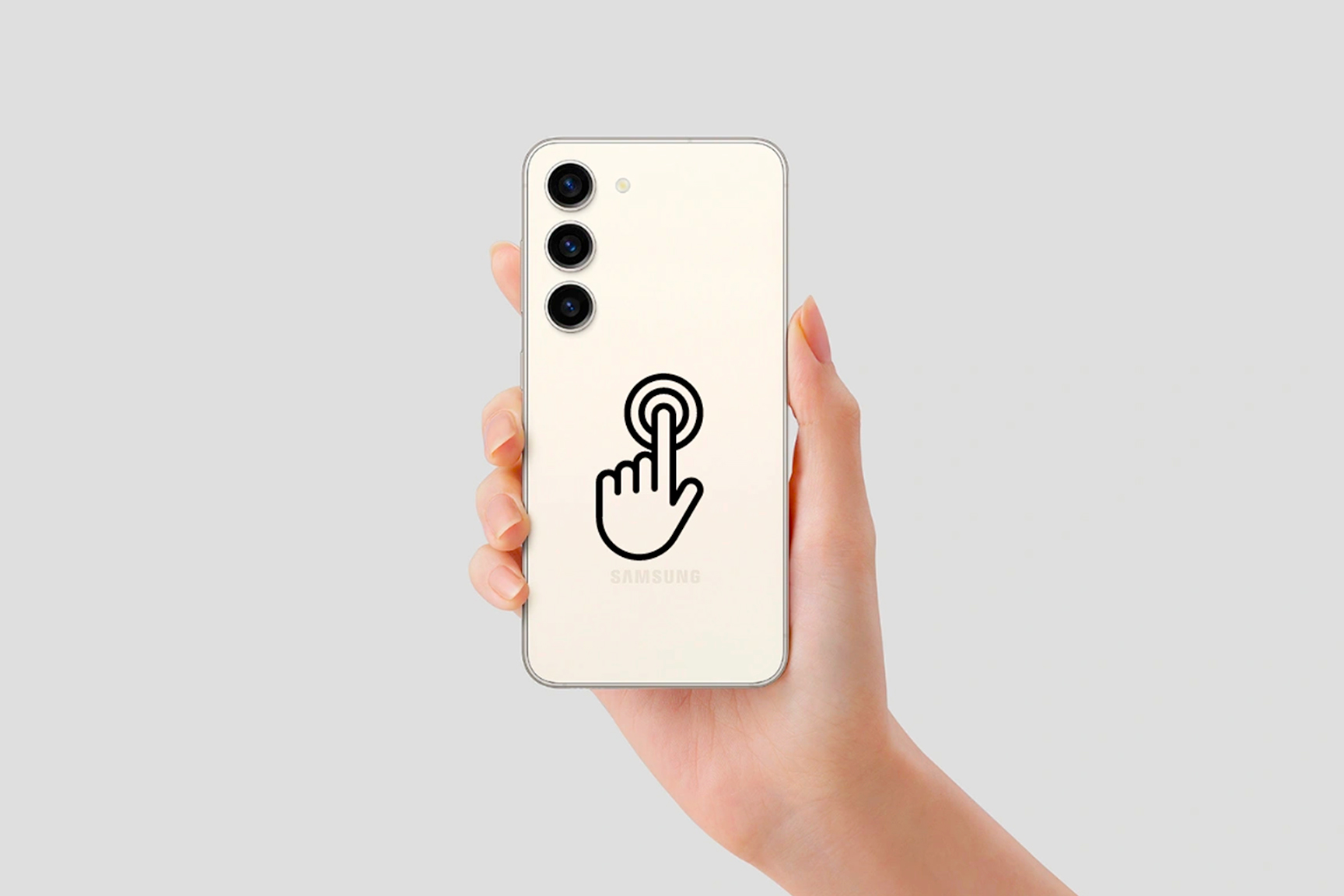
- Feature 11:
- Enable Quick Tap (Back Tap)
- → Open Settings
- → Tap System
- → Select Gestures
- → Tap Quick Tap
- Some Android phones allow you to double-tap the back of your phone to trigger actions.
- Why it’s useful: Quick shortcuts without pressing buttons.
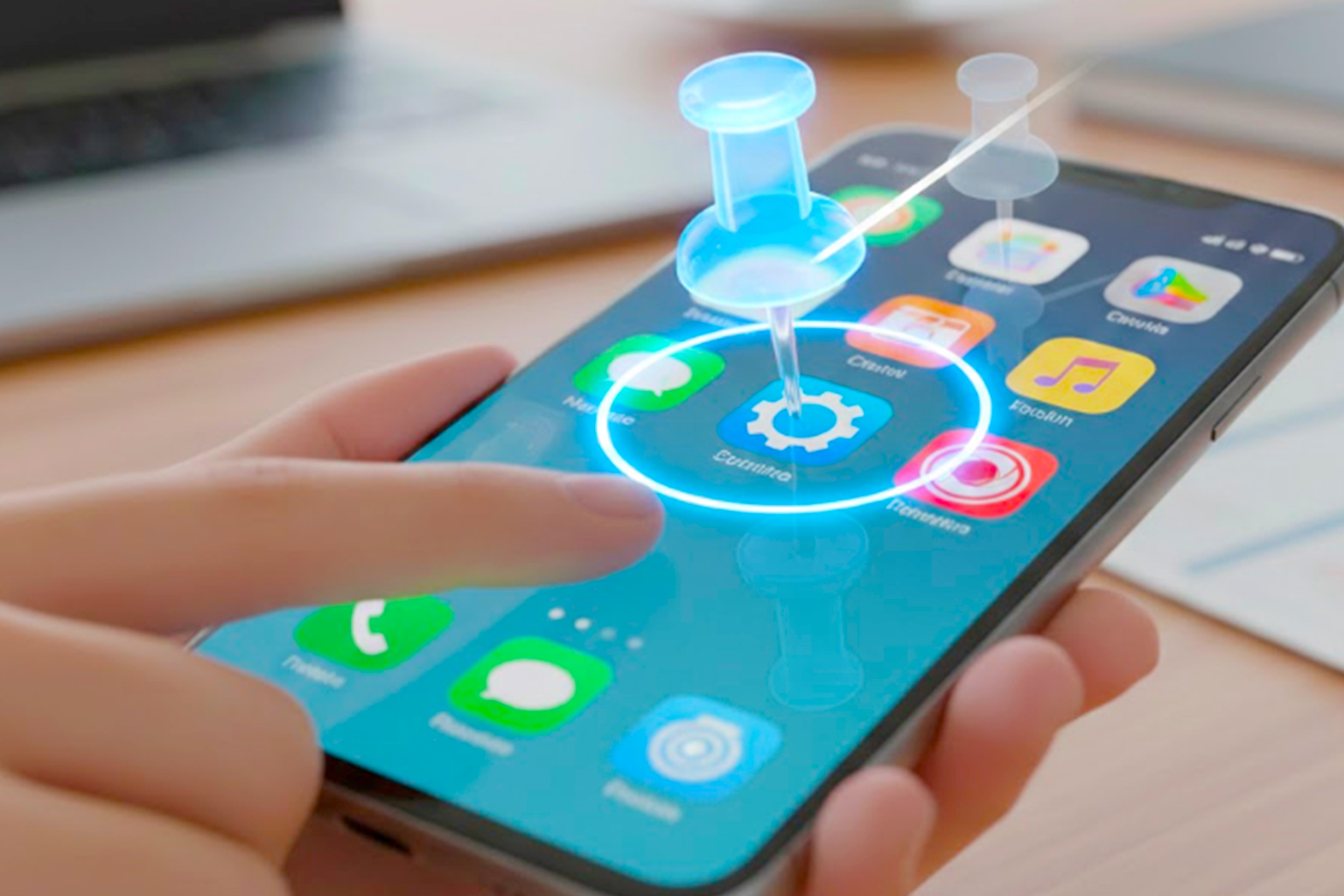
- Feature 12:
- Turn On App Pinning
- → Open Settings
- → Tap Security
- → Select App Pinning
- → Toggle ON
- App Pinning locks your phone to a single app.
- Why it’s useful: Great when letting someone use your phone.
- Feature 13:
- Enable Data Saver
- → Open Settings
- → Tap Network & Internet
- → Select Data Saver
- → Toggle it ON
- Data Saver limits background internet usage.
- Why it’s useful: Helps reduce mobile data consumption.
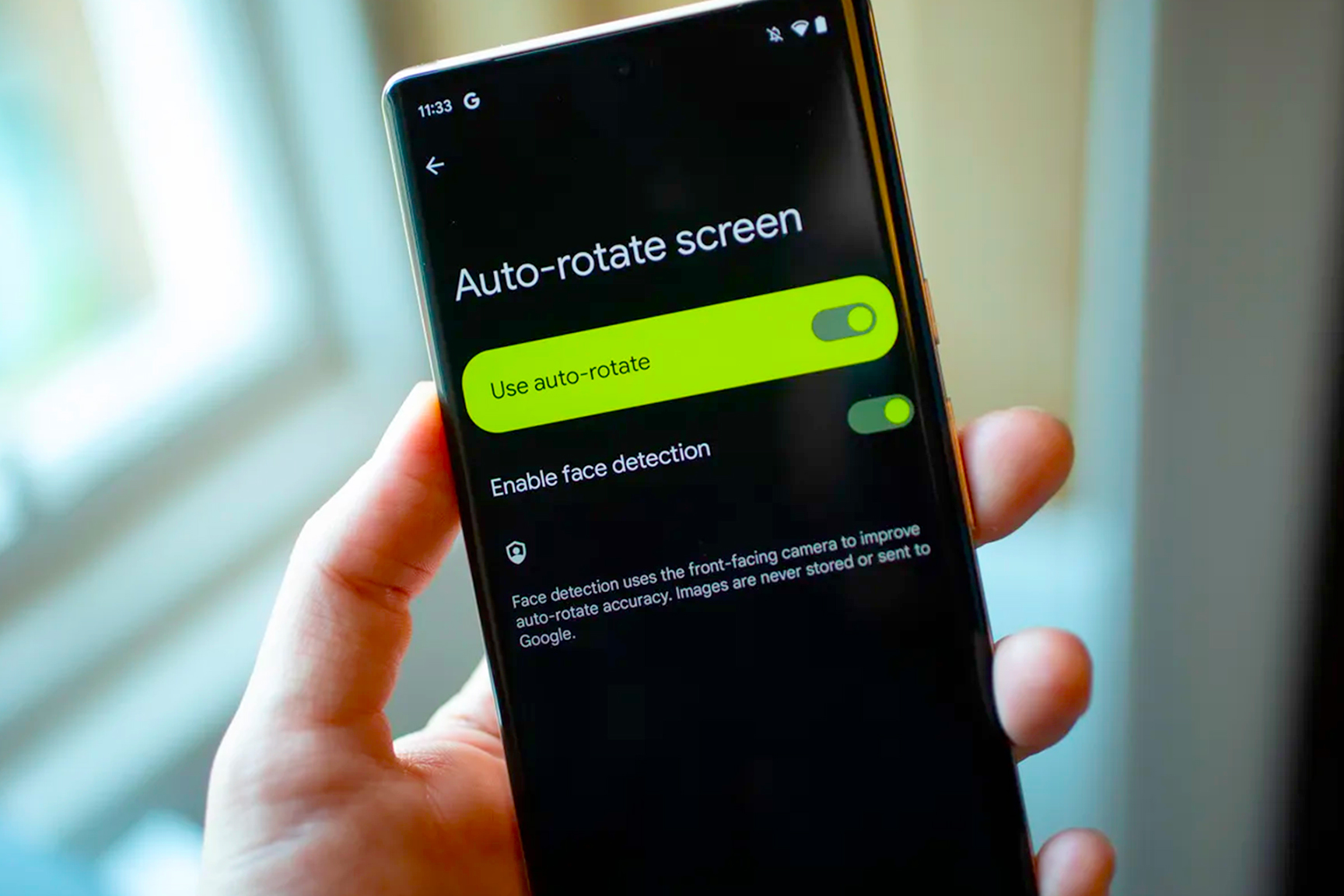
- Feature 14:
- Turn On Auto-Rotate Face Detection
- → Open Settings
- → Tap Display
- → Select Auto-Rotate
- → Enable Face Detection
- Some Android phones rotate the screen based on your face position.
- Why it’s useful: Your screen rotates correctly even when you're lying down.
- Feature 15:
- Enable Emergency SOS
- → Open Settings
- → Tap Safety & Emergency
- → Select Emergency SOS
- → Configure emergency contacts
- Emergency SOS can quickly contact emergency services.
- Why it’s useful: Press the power button multiple times to call for help instantly.
Read
Android is one of the most customizable mobile operating systems, but many of its best features are hidden inside the settings menu. By enabling these tools, you can improve your phone’s battery life, security, privacy, and overall usability.
Whether you’re using a Samsung, Google Pixel, Xiaomi, or other Android device, these hidden features can help you get more out of your smartphone in 2026.
Want More Helpful Tech Tutorials?
If you enjoy practical guides like this, check out our full collection of tutorials on the Tech Guides page.
We regularly publish easy-to-follow guides on smartphones, gadgets, smart homes, and everyday technology to help you get the most out of your devices. Stay tuned for more tips and tech insights from Top Gadget Info.